
FreePBX Monitoring
Step-by-step guide to setting up comprehensive monitoring for your FreePBX infrastructure
VoIP Toolbox and This Guide
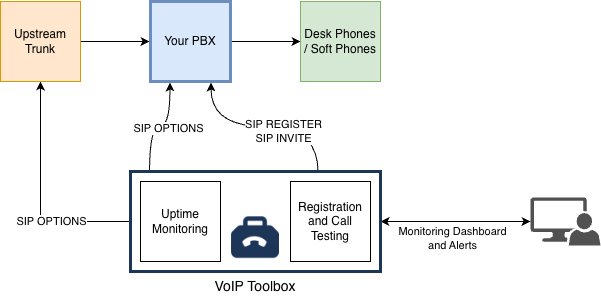
VoIP Toolbox is a comprehensive monitoring solution for your FreePBX system. It allows you to monitor your FreePBX system and upstream trunks, and provides a comprehensive testing setup that covers multiple aspects of SIP functionality.
This guide will walk you through setting up registration and call testing for your FreePBX system.
- Registration testing verifies that your PBX can accept and authenticate SIP registrations, which is critical for ensuring your system is ready to handle user connections.
- Call testing verifies that your PBX can process actual call attempts end-to-end, which is critical for ensuring your system is ready to handle user calls.
Setting Up Registration Monitoring for FreePBX
This guide will walk you through setting up registration testing for your FreePBX system. Registration testing verifies that your PBX can accept and authenticate SIP registrations, which is critical for ensuring your system is ready to handle user connections.
Create a Test Extension in FreePBX
For registration testing, we'll configure a new testing-only extension. This extension will be used exclusively for monitoring purposes and won't interfere with your production users.
- Log in to your FreePBX web interface
- Navigate to Connectivity on the top menu
- Select Extensions from the dropdown
- Click Add New Extension and select the SIP option
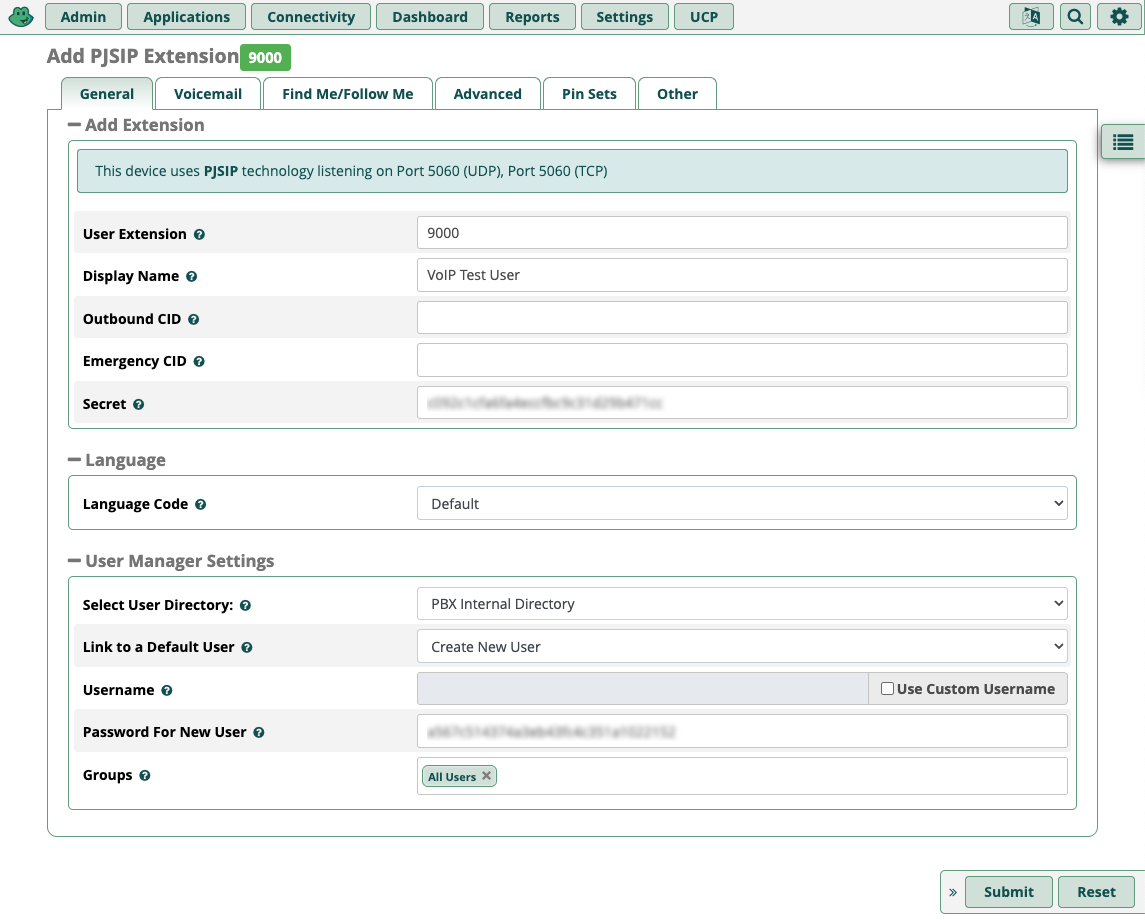
Extension Number Selection: The User Extension field is where you'll pick the new extension number for testing. Choose a number outside your main user range. For example, if your users are in the range 1000-1999, use 9000 as your test extension so it's clearly separate.
Important: After entering the extension number, add a useful Display Name (e.g., "VoIP Test Registration") so the extension's purpose is clear in the future. Copy the 'Secret' field value - you'll need this later for configuring the monitoring endpoint. You can always retrieve this from FreePBX later if needed.
Example Configuration:
- Extension: 9000
- Display Name: VoIP Test Registration
- Secret: (copy this value for later use)
Click image to view full size
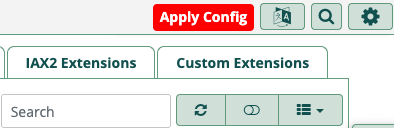
Critical Step: After clicking Submit to create the extension, you must click the red Apply Config button on the top menu. Without reloading FreePBX configuration, the extension will not be ready to use.
Configure Monitoring in VoIP Toolbox
Once your test extension is created and the FreePBX configuration has been applied, you're ready to configure monitoring in VoIP Toolbox.
- Navigate to VoIP Toolbox Pulse
- Click Add New SIP Endpoint
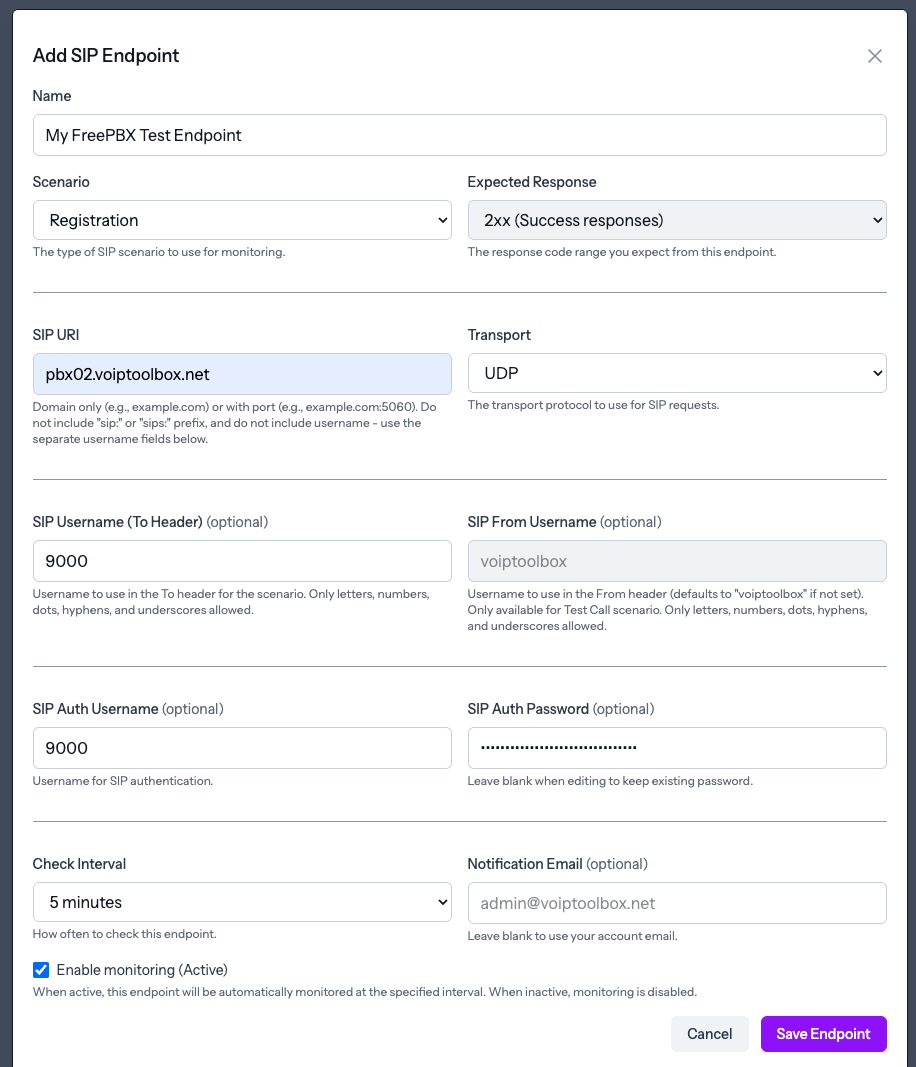
- Fill in the form with the following details:
Required Fields:
- SIP URI
-
Enter the hostname of your FreePBX server and optional port. If no port is specified,
5060 will be used. Example:
pbx.example.comorpbx.example.com:5060 - Protocol
- Select the transport protocol your FreePBX server is using: UDP, TCP, or TLS. You can find this in FreePBX by going to Settings > Asterisk SIP Settings.
- Scenario Type
- Select Registration from the dropdown.
- Auth Username
-
Enter the extension number you created (e.g.,
9000). - Auth Password
- Enter the Secret value you copied from FreePBX when creating the extension.
- To User
-
Enter the same extension number (e.g.,
9000).
Click image to view full size
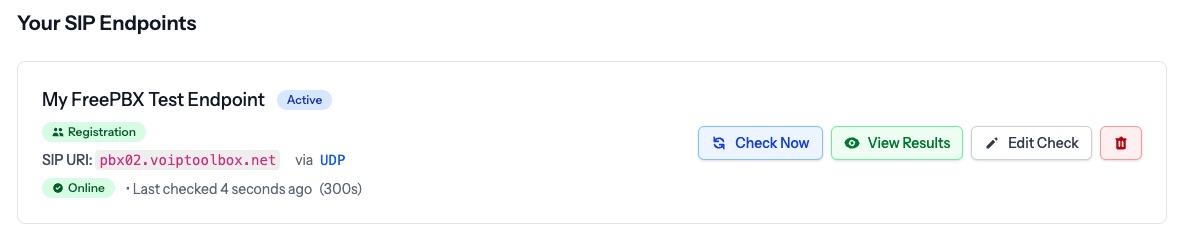
After Saving: Once you complete the form and click Save, it may take a minute or two for the first check to run. The system needs to initialize the monitoring schedule before the first test executes.
Click image to view full size
Click image to view full size
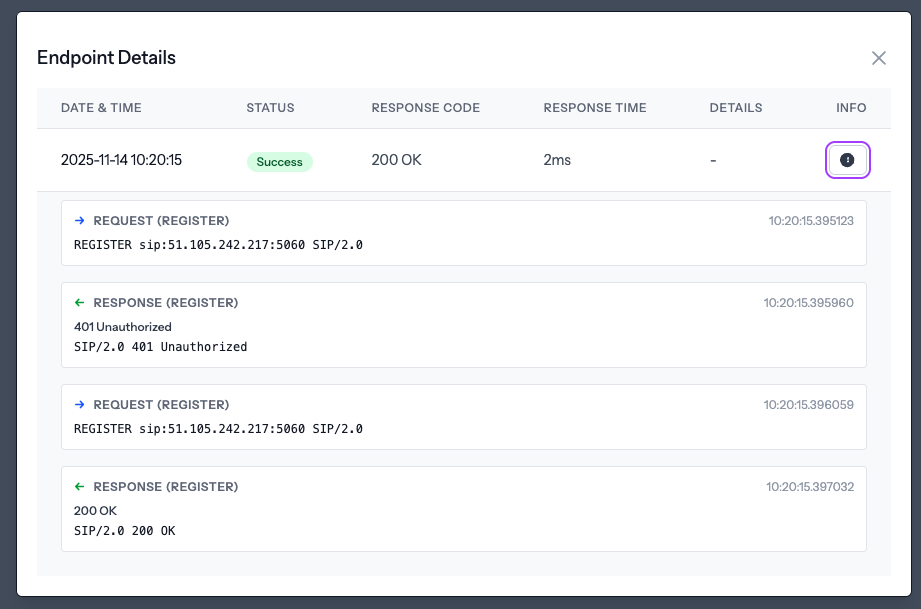
Monitoring Active: Once the first check completes, you'll see the registration status and can view detailed SIP message exchanges. The monitoring will continue running at your specified interval, keeping you informed about the status of your FreePBX registration.
Get Started
Ready to set up active assurance for your FreePBX system? Sign up for Pulse to access our infrastructure assurance tools and configure monitoring for your PBX and upstream trunks.
Setting Up Call Testing for FreePBX
This guide will walk you through setting up call testing for your FreePBX system. Call testing verifies that your PBX can process actual call attempts end-to-end, which is critical for ensuring your system is ready to handle user calls.
Part 1: Configure FreePBX Announcement
To test calls, we need to set up an announcement in FreePBX that will play audio when we call our test number. This involves uploading a system recording and creating an announcement application.
Step 1.1: Upload a System Recording
First, we need to upload a system recording if we don't already have one. This is the audio file that will play when we call our test number. It can be anything at all.
- Log in to the Admin part of FreePBX
- Go to Admin (top menu) > System Recordings
- You can use text to speech if you have a suitable API configured
Need a Test Audio File? If you're stuck, you could head to
https://downloads.asterisk.org/pub/telephony/sounds/
and download a music on hold wav file, e.g. asterisk-moh-opsound-wav-current.tar.gz,
then upload one of those files for your test audio.
Step 1.2: Create an Announcement
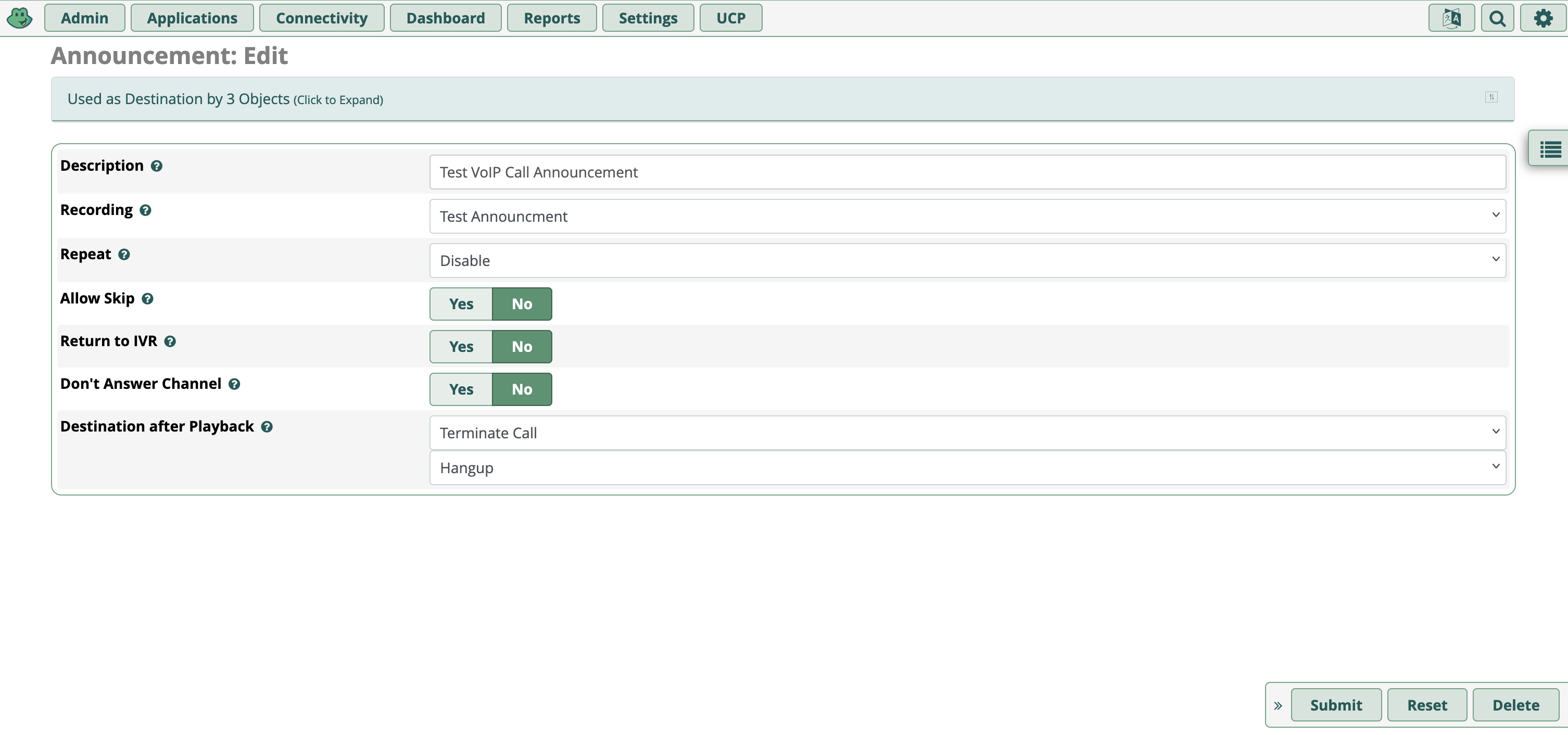
With a system recording in place, we can then make an announcement.
- From FreePBX, head to Application > Announcements
- Complete the form
- Select Terminate call > Hangup as the destination post playback
Click image to view full size
Step 1.3: Add a Misc Application
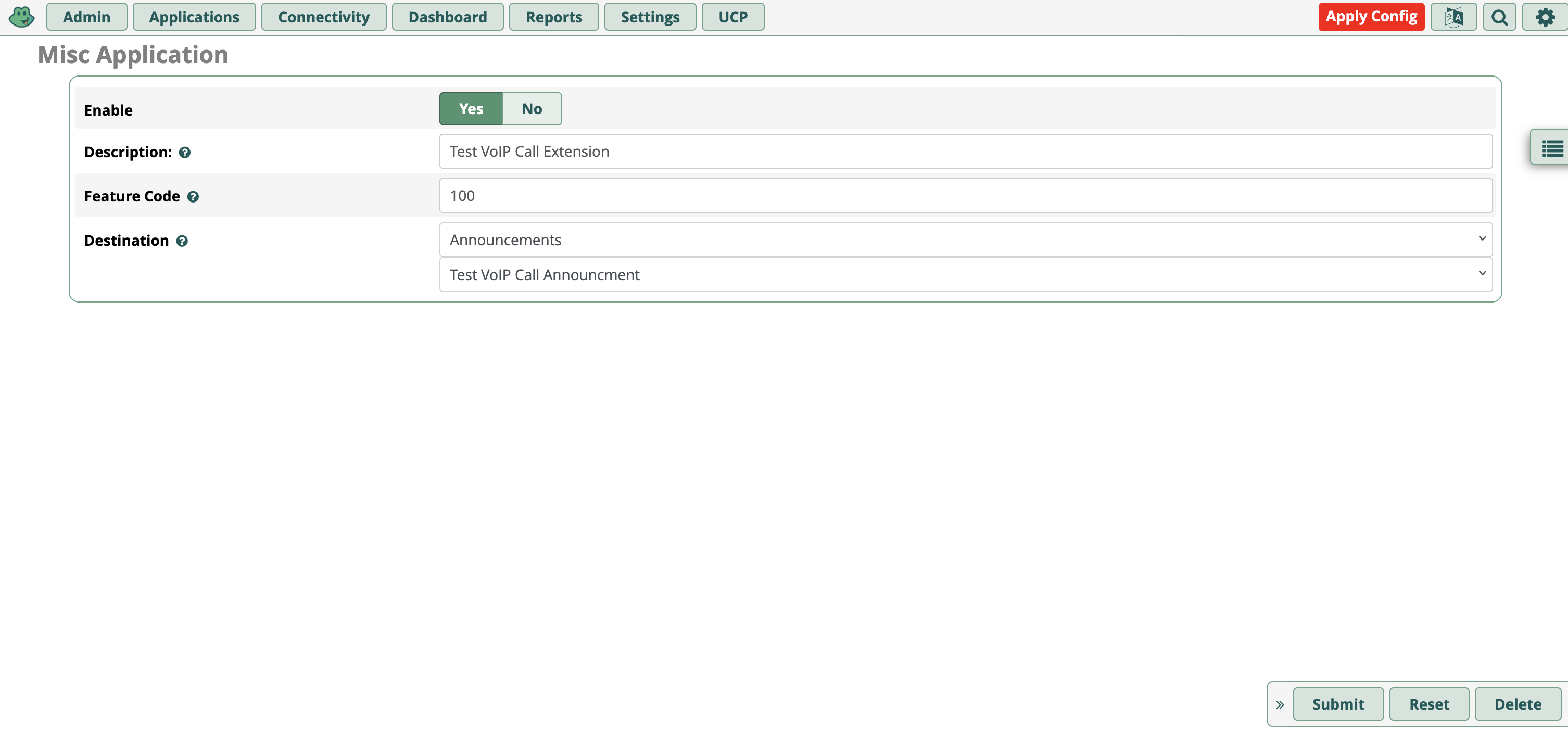
This allows us to set an extension number (e.g., 100) with playing the announcement.
- Navigate to Application > Misc Applications
- Add a new Misc Application
- Set the extension number (e.g.,
100) - Configure it to play the announcement you created
Click image to view full size
Critical Step: Once you hit Submit, remember to press Apply Config in the header menu. Without reloading FreePBX configuration, the announcement extension will not be ready to use.
Step 1.4: Test Your Announcement
Manual Test: You can now test your announcement using an existing phone
connected to your FreePBX instance. Calling the number you configured (e.g., 100)
should connect a call that plays some audio.
Part 2: Configure VoIP Toolbox Call Testing
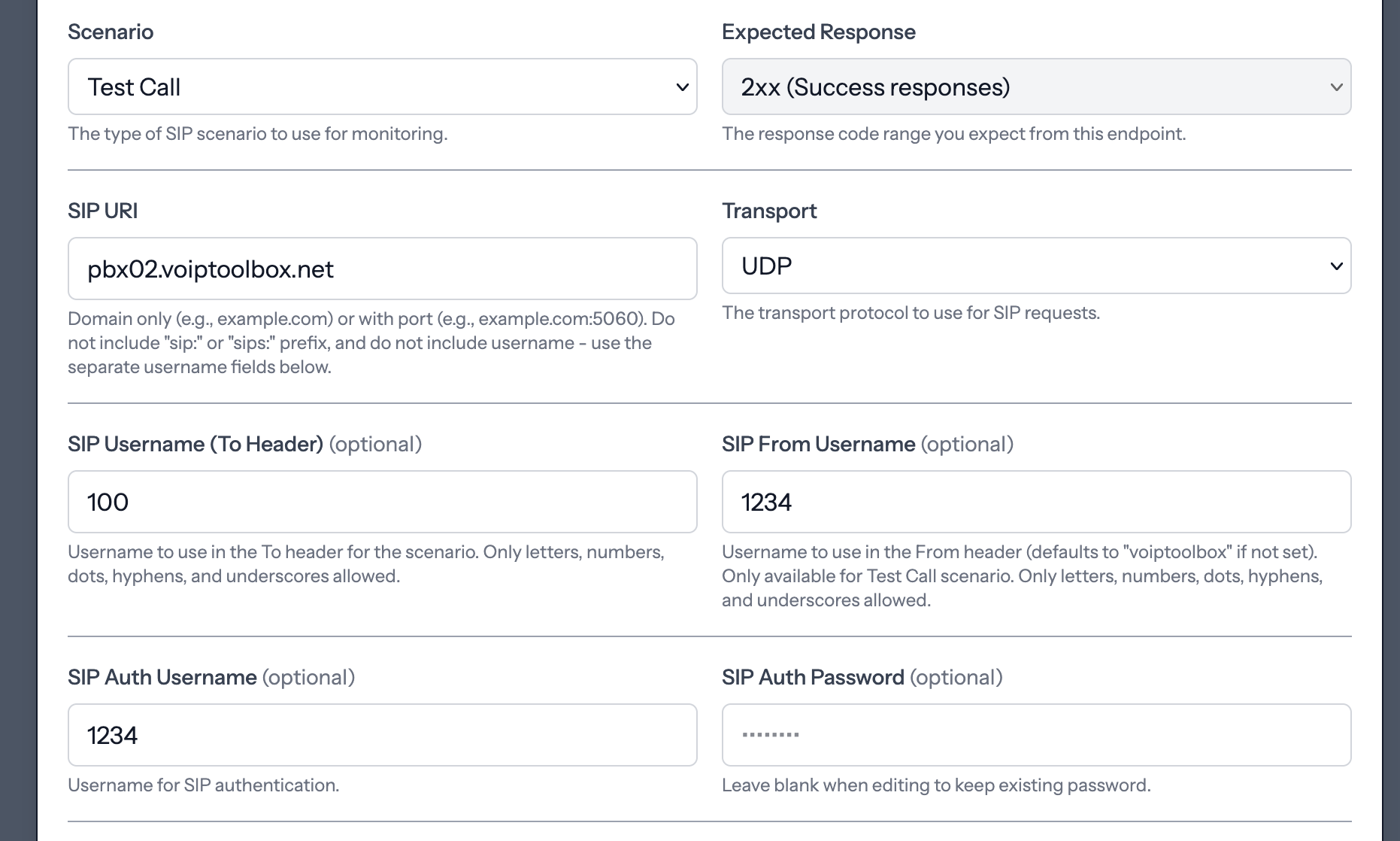
Using the same user details from our registration test above, we'll now add a Call test scenario. This will automatically test that calls can be made and completed successfully.
- Navigate to your existing Pulse endpoint in VoIP Toolbox Pulse
- Click Add Scenario or edit the endpoint to add a new scenario
- Fill in the form with the following details:
Required Fields for Call Testing:
- SIP URI
- Same as your registration test - the hostname of your FreePBX server and optional port.
- Protocol
- Same as your registration test - UDP, TCP, or TLS.
- Scenario Type
- Select Call from the dropdown.
- Auth Username
-
Same as your registration test - the extension number you created (e.g.,
9000). - Auth Password
- Same as your registration test - the Secret value from FreePBX.
- From User
-
Enter your registering extension number (e.g.,
9000). This is the extension that will be making the call. - To User
-
Enter the number for the announcement (e.g.,
100). This is the extension that will receive the call and play the announcement.
Important: All the details are the same as your registration test, except we also need to complete a From and To number. From will be our registering extension. To will be our number for the announcement.
Click image to view full size
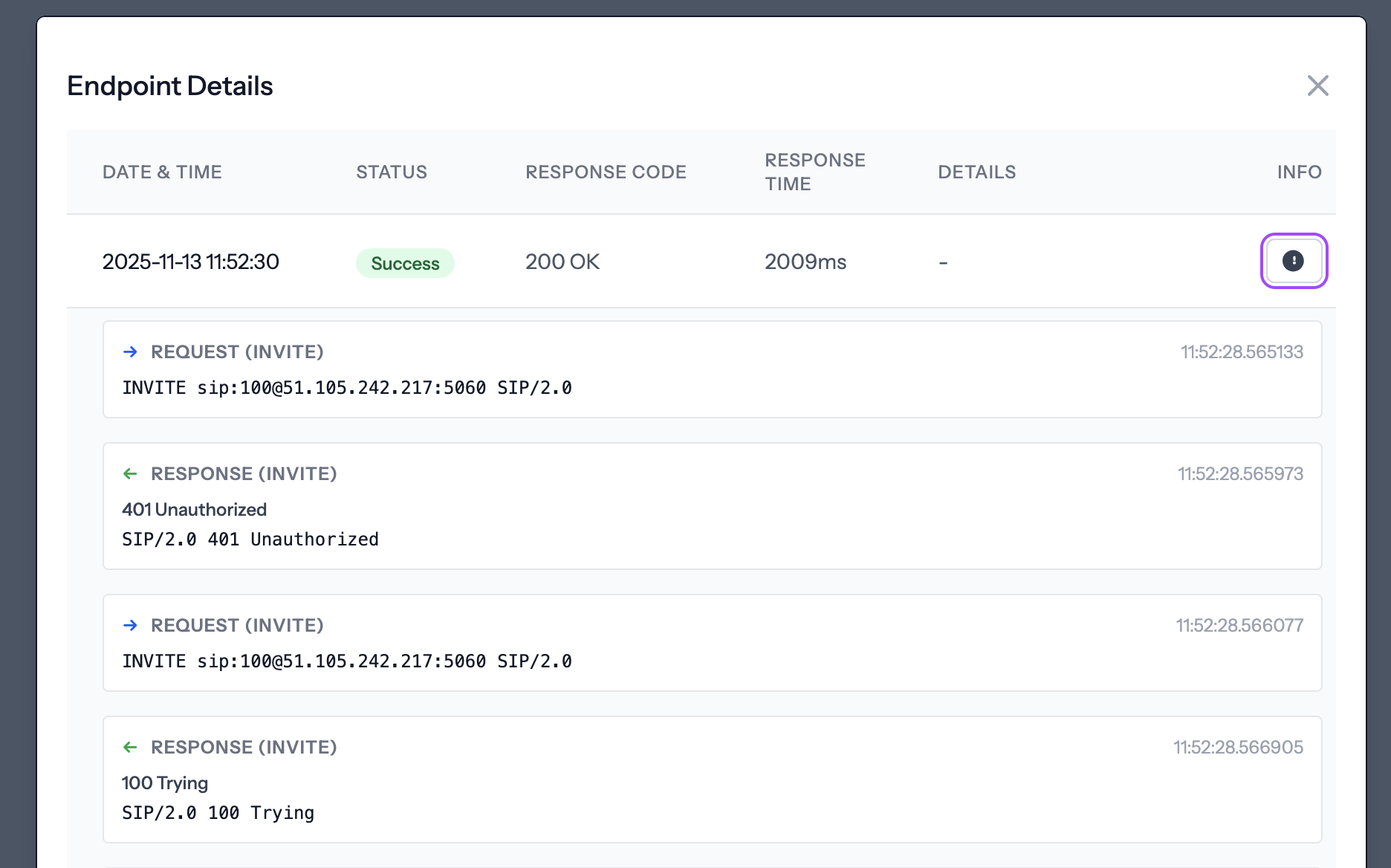
After Saving: Once you complete the form and click Save, it may take a minute or two for the first check to run. The system needs to initialize the monitoring schedule before the first test executes.
Click image to view full size
Monitoring Active: Once setup, we can confirm it's working by heading to Details from our SIP endpoint page and viewing the SIP flow. The monitoring will continue running at your specified interval, keeping you informed about the status of your FreePBX call handling.
Get Started
Ready to set up active assurance for your FreePBX system? Sign up for Pulse to access our infrastructure assurance tools and configure monitoring for your PBX and upstream trunks.
Why Registration and Call Testing Matter
Registration and call testing are among the most important tests you can perform on your FreePBX system. Together, they provide comprehensive coverage of your PBX's core functionality:
Registration Testing Benefits
- Authentication Verification: Ensures your PBX can properly authenticate SIP registrations
- Early Problem Detection: Catches authentication and registration issues before they impact users
- Service Availability: Verifies that your registration service is functioning correctly
- Production Readiness: Confirms your system is ready to handle real user registrations
Call Testing Benefits
- End-to-End Verification: Tests the complete call flow from initiation to completion
- Call Routing Validation: Ensures your dialplan and call routing logic work correctly
- Media Path Testing: Verifies that audio can be established and maintained during calls
- Real-World Simulation: Confirms your system can handle actual call attempts like real users would make
Monitor Upstream Trunks
In addition to monitoring your FreePBX system, you can also configure monitoring for your upstream trunk providers. This gives you an early warning when issues arise. Get notified before your customers experience failures, allowing you to proactively address problems and maintain service quality.
Proactive Monitoring: By monitoring your upstream trunks, you can detect connectivity issues, authentication problems, or service degradation before they impact your customers. This early warning system helps you maintain high service availability and customer satisfaction.
Monitoring Best Practices for FreePBX
For Your FreePBX System
- Monitor all critical SIP interfaces (UDP, TCP, TLS)
- Configure appropriate check intervals based on your needs
- Set up email notifications for immediate alerts
- Monitor both internal and external SIP interfaces
- Use dedicated test extensions for monitoring
For Upstream Trunks
- Monitor your upstream trunk providers
- Configure email notifications for immediate alerts
- Track historical performance trends
- Test different transport protocols (UDP, TCP, TLS)
Get Started
Ready to set up active assurance for your FreePBX system? Sign up for Pulse to access our infrastructure assurance tools and configure monitoring for your PBX and upstream trunks.